
Tech Tutorial: Essential Hardware Maintenance Guide
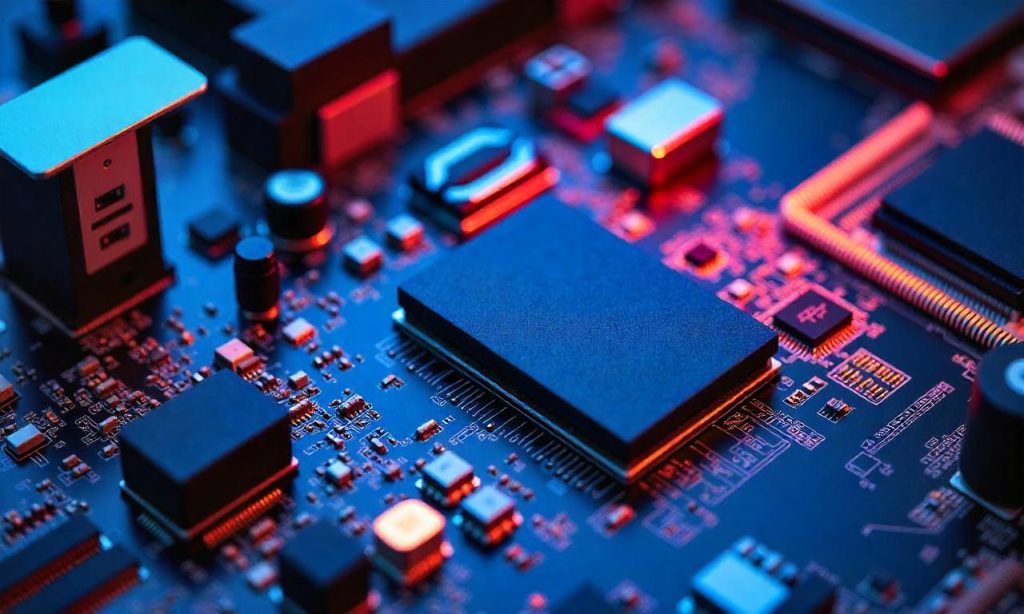
In today’s fast-paced digital world, hardware maintenance plays a critical role in ensuring the longevity and optimal performance of your tech devices. Whether you’re a beginner or an experienced user, a tech tutorial on hardware maintenance can empower you to keep your computer systems, servers, and other hardware components running smoothly. Regular maintenance not only prevents unexpected failures but also improves efficiency, reduces energy consumption, and extends the lifespan of your equipment. This tech tutorial on hardware maintenance will guide you through the essential steps and best practices to keep your hardware in top condition, helping you avoid costly repairs and downtime.
Section 1: Understanding the Basics of Hardware Maintenance
Before diving into specific maintenance tasks, it’s important to understand what hardware maintenance entails and why it matters. Hardware maintenance refers to the process of inspecting, cleaning, and repairing physical components of a computer or other electronic devices. Unlike software updates, which are often quick and effortless, hardware maintenance requires a deeper level of engagement, including physical access to internal parts and the use of specialized tools.
What is Hardware Maintenance?
Hardware maintenance involves the upkeep of both internal and external components of a device. This includes everything from CPU fans and hard drives to motherboards and power supplies. It’s not just about fixing broken parts but also about preventing wear and tear through routine checks and optimizations. For instance, regular cleaning of dust buildup can prevent overheating, which is a common cause of hardware failure.
Why is Hardware Maintenance Important?
Ignoring hardware maintenance can lead to serious issues, such as system crashes, data loss, and reduced performance. Over time, components like cooling systems, power supplies, and storage devices degrade due to continuous use. By performing routine maintenance, you can identify potential problems early, minimize the risk of catastrophic failures, and ensure your devices operate at peak efficiency.
Tools and Materials for Hardware Maintenance
To carry out effective hardware maintenance, you’ll need a few basic tools. These include screwdrivers (both Phillips and flathead), compressed air cans for cleaning, anti-static wrist straps to prevent electrostatic discharge, and thermal paste for reapplying heat dissipation. Additionally, having a clean workspace and backup tools like a multimeter or cable organizers can streamline the process.
Section 2: Cleaning and Dust Removal
One of the most critical aspects of hardware maintenance is cleaning. Dust accumulation is a silent killer for electronic devices, as it can block airflow, cause overheating, and even lead to short circuits. This tech tutorial on hardware maintenance emphasizes the importance of regular cleaning to maintain the health of your hardware.
Step-by-Step Guide to Cleaning Your Hardware
Start by powering off your device and unplugging all cables. Next, open the case using a screwdriver and use compressed air to blow out dust from the fan blades, heat sinks, and motherboard slots. For stubborn grime, you can gently wipe components with a soft, lint-free cloth. Don’t forget to clean the power supply unit (PSU) and cooling vents, as these are common dust traps.
Best Practices for Dust Removal
When cleaning your hardware, always work in a well-lit area and ensure the device is fully discharged. Use anti-static wrist straps to avoid damaging sensitive components with static electricity. Additionally, avoid using liquid cleaners directly on circuits—instead, opt for isopropyl alcohol wipes for non-electrical parts. Regular cleaning should be done every 3-6 months, depending on the environment.
The Impact of Clean Hardware on Performance
A clean hardware system not only prevents overheating but also improves airflow efficiency, which can enhance cooling performance. This is especially important for high-performance devices like gaming rigs or servers. For example, a dusty CPU fan may spin slower, leading to increased temperatures and potential hardware damage. By incorporating cleaning into your tech tutorial on hardware maintenance, you’ll create a more reliable and efficient system.
Advanced Cleaning Techniques
For more thorough cleaning, consider using a soft brush or a vacuum with a brush attachment to remove dust from hard-to-reach areas. If you’re working with internal components, you might also need to replace the thermal paste on the CPU to ensure proper heat dissipation. This tech tutorial on hardware maintenance also recommends using isopropyl alcohol for cleaning contact points on RAM modules or GPU connectors to prevent corrosion.
Section 3: Checking and Upgrading Components
Beyond cleaning, another essential part of hardware maintenance is checking and upgrading key components. This ensures that your system remains up-to-date and can handle modern workloads. Whether you’re upgrading RAM, storage, or graphics cards, understanding how to perform these tasks is crucial.
How to Check Hardware Components
Begin by inspecting critical hardware components such as RAM, SSDs, and hard drives for physical damage. Use a multimeter to test power supply units (PSUs) and check for voltage fluctuations that could affect performance. For motherboards, look for swollen capacitors or burned-out chips, which are signs of electrical issues. Regular component checks can help you identify problems before they escalate.
Upgrading Hardware for Better Performance
Upgrading hardware components can significantly improve your system’s speed and efficiency. For example, replacing an old HDD with an SSD can drastically reduce boot times and enhance data transfer speeds. Similarly, adding more RAM can boost multitasking capabilities, especially for applications like video editing or gaming. This tech tutorial on hardware maintenance also covers how to upgrade graphics cards to improve graphic rendering performance without professional assistance.
Common Hardware Upgrades and Their Benefits
Some of the most popular hardware upgrades include CPU replacements, storage expansions, and power supply upgrades. A new CPU can provide better processing power, while expanding storage ensures you have enough space for large files. Upgrading to a higher wattage power supply can also support more powerful components. These upgrades are part of a comprehensive tech tutorial on hardware maintenance that helps you tailor your system to your needs.
When to Replace vs. Repair Components
Not all hardware issues require replacement. For example, a failing hard drive might be fixed with data recovery tools, while a burned-out capacitor on a motherboard would need to be replaced. This tech tutorial on hardware maintenance teaches you how to diagnose and decide whether to repair or replace components based on their condition and importance to your system.
Section 4: Troubleshooting Common Hardware Issues
Even with regular maintenance, hardware issues can still occur. Being able to troubleshoot common problems is an essential skill for anyone following a tech tutorial on hardware maintenance. This section provides practical solutions to address frequent hardware failures and performance bottlenecks.
Identifying Hardware Failures
When your system experiences unexpected shutdowns, slow performance, or error messages, it’s time to troubleshoot. Start by checking fan functionality and temperature levels using monitoring software. If the CPU or GPU is overheating, ensure airflow is not blocked. For storage issues, run disk checks to identify bad sectors or corruption.
Troubleshooting Overheating Problems
Overheating is a major cause of hardware failure. To troubleshoot this, inspect cooling fans and heat sinks for dust buildup. Replace thermal paste if it’s dried out or uneven. If fan noise is excessive, check for worn-out bearings or damaged blades. Adding additional fans or improving case ventilation can also mitigate overheating.
Fixing Power Supply Issues
A faulty power supply can cause system crashes or power outages. To troubleshoot, test the PSU with a multimeter or a power supply tester. If the voltage output is inconsistent, replace the power supply. Also, ensure cables are properly connected and fans are functioning to prevent power delivery issues.
Addressing Connectivity and Component Failures
Connection issues with USB ports, HDMI cables, or motherboard connectors can be resolved by reseating the hardware components. If a USB device is not recognized, try using a different port or cable. For internal components like RAM, use a RAM diagnostic tool to check for memory errors. This tech tutorial on hardware maintenance also covers replacing failed components like batteries in laptops or blown fuses in power supplies.
Preventive Measures for Hardware Reliability
To prevent hardware issues, implement preventive maintenance strategies. These include regularly checking fan speeds, updating firmware, and monitoring temperatures. Additionally, using quality components and proper cooling can reduce the risk of failure. This tech tutorial on hardware maintenance encourages users to stay proactive and document their maintenance routines for future reference.
Conclusion
Maintaining your hardware is an ongoing process that requires attention to detail and regular effort. By following this tech tutorial on hardware maintenance, you can ensure your devices remain reliable, efficient, and long-lasting. From cleaning and component checks to upgrades and troubleshooting, each step contributes to the overall health of your system. Whether you’re dealing with overheating, power issues, or connectivity problems, a well-structured maintenance routine can help you avoid downtime and enhance performance. So, take the time to invest in your hardware—it’s a small effort that pays off in the long run.
