
Effective Ways to Troubleshoot Common Tech Issues Like a Pro

Effective Ways to Troubleshoot Common Tech Issues Like a Pro
When technology fails, it can feel like your world stops. Whether it’s a slow computer, a malfunctioning smartphone, or an internet connection that keeps dropping, knowing how to troubleshoot common tech issues can save you time, money, and frustration. The key is to approach these problems methodically, using proven techniques to get things back to normal quickly. This article will guide you through the most effective methods to solve everyday tech problems, ensuring that you can handle issues like a pro.
1. Start with Basic Troubleshooting
Before diving into complex solutions, it’s important to rule out basic issues. Often, a quick check can solve the problem without requiring advanced knowledge.
For instance, check if your device is properly plugged in or if there’s a loose connection. Sometimes, issues like unresponsive screens or failure to boot can be resolved simply by rebooting the system. Additionally, ensure that your software or apps are up to date since outdated programs can often lead to problems.
By covering these basic checks first, you can avoid spending time on unnecessary fixes and focus your attention on more complex troubleshooting if needed.
2. Check for Software or Hardware Issues
If the basics didn’t help, it’s time to investigate whether the issue is software- or hardware-related. Start by considering if the issue began after a recent update or installation. New software can sometimes be incompatible with older systems, causing unexpected glitches.
For hardware problems, check for visible damage to cables, ports, or components. A broken screen, damaged charging port, or failing battery can often cause issues. If the hardware seems fine, try restarting or reinstalling the software to see if that resolves the issue.
Remember, identifying whether the problem is hardware or software-related will save you time and guide your next steps in the troubleshooting process.
3. Use Diagnostic Tools
Many devices come with built-in diagnostic tools that can help pinpoint the source of the issue. For example, computers often have built-in troubleshooting utilities that check the system for common problems. Similarly, smartphones and other devices often include self-diagnostic apps that can help detect issues with connectivity, performance, or hardware.
Running these tools can give you insights into where the problem lies. They can scan for anything from system errors to potential viruses or corrupted files. Using these diagnostic tools is an excellent way to get a head start on resolving the issue.
4. Update Drivers and Operating Systems
One of the most common causes of tech problems is outdated or corrupt drivers and operating systems. When your drivers are out of date, it can cause everything from device malfunction to slow performance.
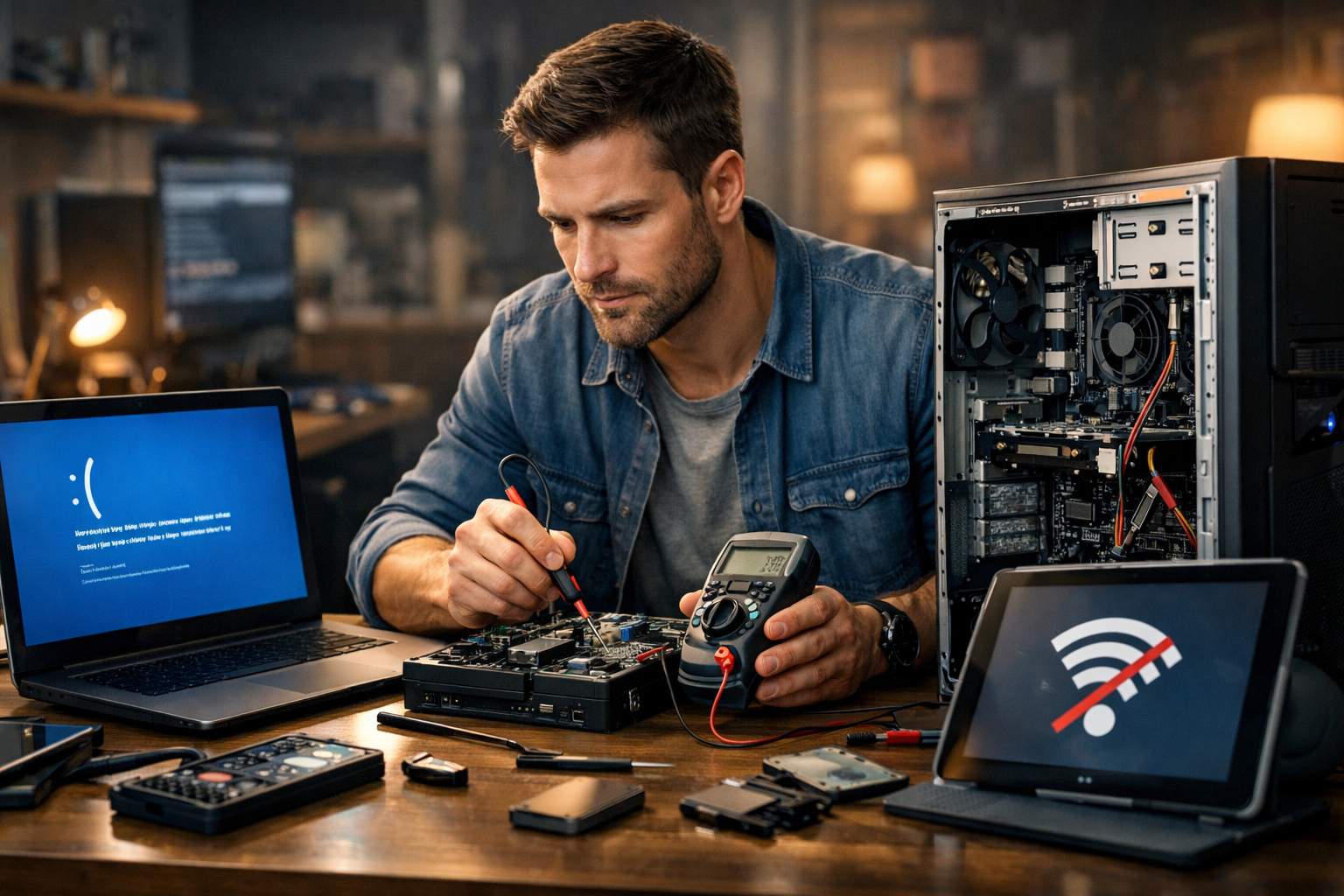
To fix this, ensure that your operating system and all drivers (such as graphics and network drivers) are up to date. Most operating systems, like Windows and macOS, offer automatic updates, but sometimes these can be disabled or delayed. Manually check for updates through the settings or control panel to ensure that everything is running as it should.
Additionally, reinstalling drivers can sometimes fix issues that updates can’t resolve. This is especially useful for devices that are not responding correctly.
5. Perform a Factory Reset or Reinstall the Operating System
When everything else fails, a more drastic measure may be required: performing a factory reset or reinstalling the operating system. This method can help you eliminate any software problems caused by corrupt files, malware, or a system malfunction.
Before taking this step, it’s essential to back up your important data. A factory reset will wipe all your files and settings, so make sure everything important is saved externally. After the reset, reinstall all apps and restore data from your backup.
This step can seem daunting, but it’s often the fastest way to eliminate persistent issues that cannot be fixed by other means.
6. Seek Professional Help if Necessary
Sometimes, despite your best efforts, you may need to seek professional assistance. If the problem is hardware-related, such as a failing hard drive or faulty motherboard, it’s best to take your device to a qualified technician. Similarly, for more complex software issues that you cannot solve on your own, professional help may be the most efficient solution.
In these cases, it’s crucial to choose a reliable repair service that offers good customer support. While DIY solutions can solve many problems, there are times when the expertise of a professional is the only way forward.
Conclusion
Knowing how to troubleshoot common tech issues is a valuable skill in today’s technology-driven world. By following a structured approach that starts with basic checks, moves on to diagnosing software and hardware problems, and then moves into more advanced steps like updates or factory resets, you can resolve most issues with confidence. If all else fails, don’t hesitate to consult a professional. With these strategies, you’ll be able to handle tech problems like a pro.
FAQ
Q: How can I fix a slow computer? A: Try closing unnecessary programs, running a disk cleanup, updating drivers, and checking for malware. If the issue persists, a fresh reinstall of the operating system can help. Q: Why does my internet keep dropping? A: Check your router and modem for any issues, ensure your device is within range, and update the firmware. You can also try restarting both your router and device. Q: What should I do if my phone is not charging? A: First, check the charging cable and port for damage. Try using a different charger or power source. If that doesn’t work, the issue may be with the battery or internal components. Q: How can I fix a frozen app or program? A: Force-close the app or program and restart it. If that doesn’t work, try restarting your device or updating the software. Q: How do I restore my device after a factory reset? A: After performing a factory reset, you can restore your data from a backup. Ensure your backup is recent and includes all important files and settings before resetting your device.
