Essential Tech Tutorial on Hardware Maintenance for Beginners

Daftar Isi
Introduction to Hardware Maintenance
In today’s tech-driven world, proper hardware maintenance is essential for ensuring your devices run smoothly and last longer. Whether you’re a beginner or looking to enhance your knowledge, understanding the basics of hardware maintenance can save you time, money, and frustration. This tech tutorial on hardware maintenance will guide you through essential steps and tips, perfect for beginners wanting to improve the longevity and performance of their hardware.
Understanding Hardware Components
Before diving into maintenance, it’s crucial to understand the different components that make up your hardware. Most computers or devices have several essential parts:
1. CPU (Central Processing Unit) – Often referred to as the brain of the computer, it processes instructions. 2. RAM (Random Access Memory) – Temporary memory that helps the computer run smoothly by storing active processes. 3. Hard Drive/SSD – The storage where your files and applications are kept. 4. Motherboard – The primary circuit board that connects all components. 5. Power Supply – Provides power to the components of your device. 6. Cooling Fans – Help maintain optimal temperature levels to avoid overheating.
Knowing these components is vital because maintaining each one properly will prevent performance degradation and potential breakdowns.
Basic Tools You’ll Need
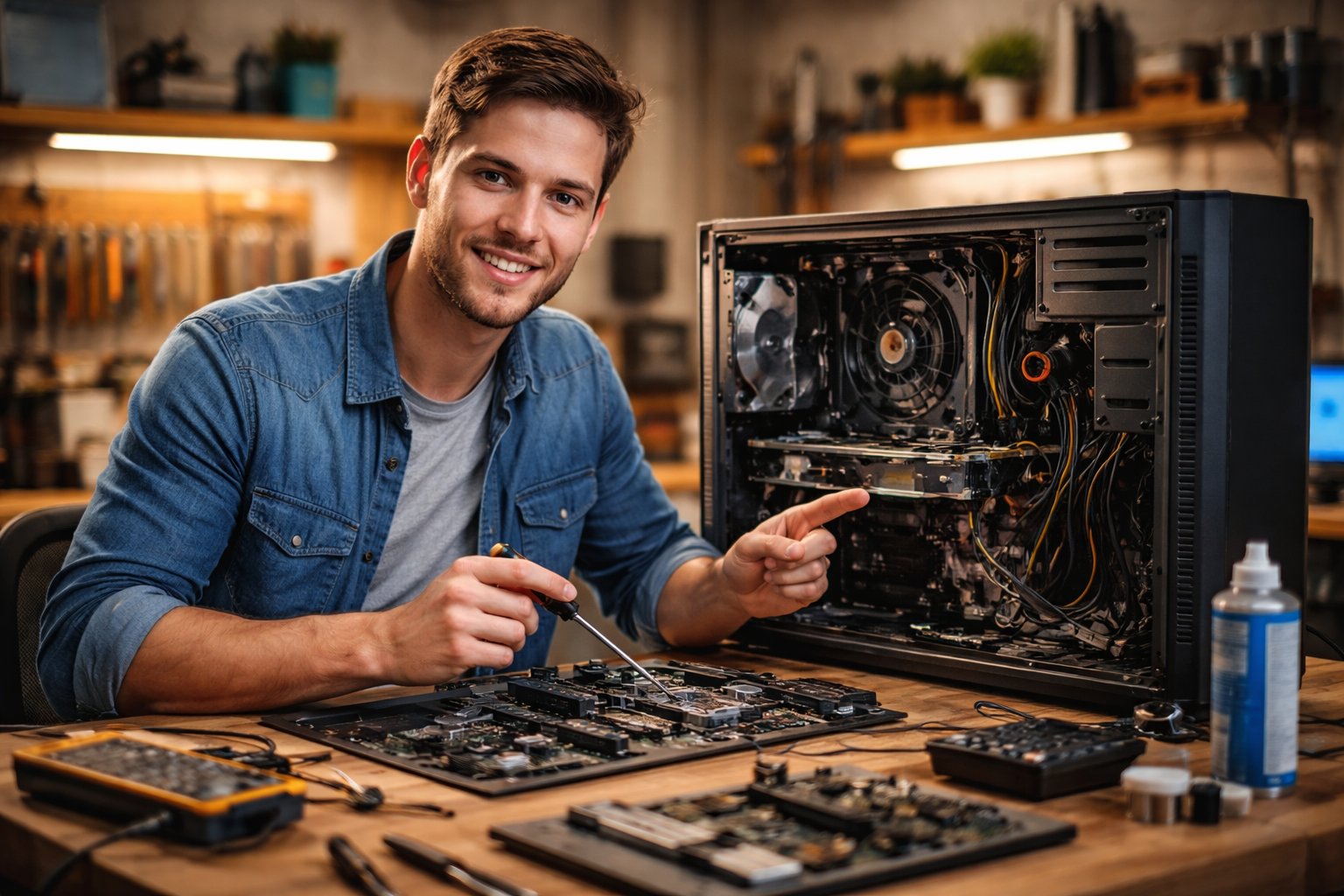
To start your tech tutorial on hardware maintenance, it’s important to have the right tools. While some tools are optional, having a basic set is a must for any beginner.
1. Screwdriver Set – A precision screwdriver set helps with removing screws from the casing. 2. Compressed Air Can – Essential for cleaning dust from inside the computer and other devices. 3. Thermal Paste – If you’re replacing or reapplying the thermal paste on the CPU, it’s crucial for efficient heat dissipation. 4. Anti-Static Wrist Strap – To prevent static electricity from damaging the components. 5. Microfiber Cloth – Perfect for cleaning sensitive areas without causing scratches.
These tools will not only make your job easier but also help ensure you don’t damage any delicate components while performing maintenance.
Cleaning and Dusting
One of the simplest yet most effective ways to maintain your hardware is by regularly cleaning it. Dust and dirt can clog up fans, vents, and other vital areas, causing overheating and reduced efficiency. Here’s how to clean your hardware:
1. Turn Off and Unplug – Always ensure your device is turned off and unplugged before cleaning. 2. Use Compressed Air – Blow out dust from the fans, vents, and other hard-to-reach areas. Hold the can upright and use short bursts. 3. Wipe Surfaces – Use a microfiber cloth to wipe down the outer surfaces and screen to remove fingerprints and dirt. 4. Clean Keyboards and Mice – Remove dirt and grime from your keyboard and mouse with a soft cloth or a slightly dampened towel.
Regular cleaning is especially critical for preventing overheating in your hardware, which can significantly impact its performance and lifespan.
Replacing Thermal Paste
Over time, the thermal paste between your CPU and its heatsink can degrade, leading to inefficient cooling and potential overheating. Reapplying thermal paste can improve heat dissipation and boost performance. Here’s how to do it:
1. Remove the Heatsink – Gently loosen the screws holding the heatsink in place. 2. Clean Off Old Paste – Use a microfiber cloth or paper towel with isopropyl alcohol (at least 90%) to clean off the old thermal paste. 3. Apply New Thermal Paste – Apply a small, pea-sized amount of new thermal paste to the center of the CPU. Don’t use too much. 4. Reattach the Heatsink – Carefully reattach the heatsink and secure it with screws.
This process can be tricky for beginners, so take your time and ensure you don’t apply too much paste, as it can cause other issues.
Hard Drive Maintenance
Hard drives are often overlooked when it comes to maintenance, but they play a crucial role in your device’s performance. Here’s what you can do to ensure your hard drive operates at its best:
1. Defragment Your Hard Drive – Over time, files can become fragmented, slowing down your device. Use built-in tools like Windows Disk Defragmenter to optimize your hard drive. 2. Check for Errors – Run a disk check to ensure your hard drive is free from errors. On Windows, you can do this by right-clicking the drive, selecting “Properties,” and then choosing “Check.” 3. Back Up Your Data – Always keep a backup of your important data. Hard drives can fail without warning, and having a backup plan can save you from data loss.
For devices with SSDs, defragmentation is not necessary, but it’s still important to monitor their health using diagnostic tools provided by the manufacturer.
Regular Software Updates
While this article focuses on hardware, it’s important to remember that software maintenance plays a huge role in hardware performance. Keeping your system and drivers updated ensures compatibility with new hardware and improves overall stability.
1. Operating System Updates – Regular updates from your OS provider help keep your device secure and running smoothly. 2. Driver Updates – Make sure your device drivers are up-to-date, especially for essential components like graphics cards and networking hardware. 3. Firmware Updates – Some hardware components, like motherboards and power supplies, may require firmware updates to function optimally.
Having the latest software ensures that your hardware is fully supported and can take advantage of new features or bug fixes.
Conclusion
Maintaining your hardware is a crucial aspect of prolonging the life of your devices and keeping them running at peak performance. By following this tech tutorial on hardware maintenance, beginners can learn essential skills like cleaning, reapplying thermal paste, and checking hard drive health. Regular maintenance will not only prevent breakdowns but will also help your hardware function more efficiently.
FAQ
Q: How often should I clean my computer's hardware?
A: You should clean your computer’s hardware every 3 to 6 months, depending on how much dust your environment has. If you have pets or live in a dusty area, cleaning more frequently is recommended.
Q: Can I replace thermal paste myself?
A: Yes, with the right tools and caution, beginners can replace thermal paste. It’s important to follow the correct steps and apply the right amount to avoid damaging your CPU.
Q: How do I know if my hard drive is failing?
A: Signs of a failing hard drive include slow performance, frequent crashes, strange noises, and files becoming inaccessible. Regularly checking for errors and backing up data is crucial.
Q: Do I need to update my drivers?
A: Yes, keeping your drivers up-to-date ensures compatibility with newer software, improves hardware performance, and fixes any known issues.
Q: What is the role of the cooling fan in hardware maintenance?
A: Cooling fans prevent overheating by circulating air to dissipate heat. Regularly cleaning your fans helps maintain efficient cooling, reducing the risk of damage to internal components.